
Setting up the web app
Setting up the web app
Keep My Everyday Wellbeing one tap away by adding it to the home screen of your phone or tablet. It will appear alongside your other apps, giving you quick and easy access whenever you need it.
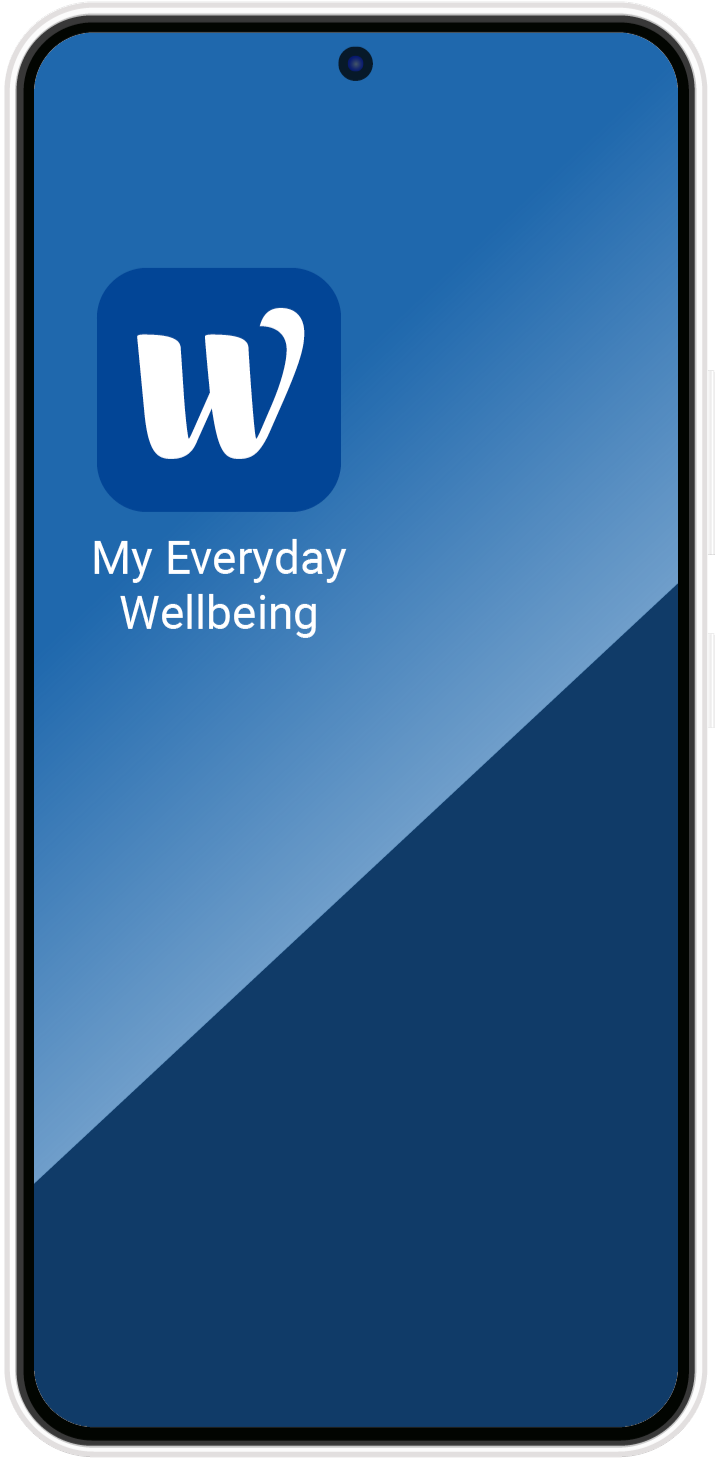
iPhone or iPad
Apple doesn’t allow a single click to add to home screen. Therefore, to add My Everyday Wellbeing to your iPhone or iPad, open the website in Safari and follow these simple steps:
Tap the three dots at the bottom of your Safari screen.
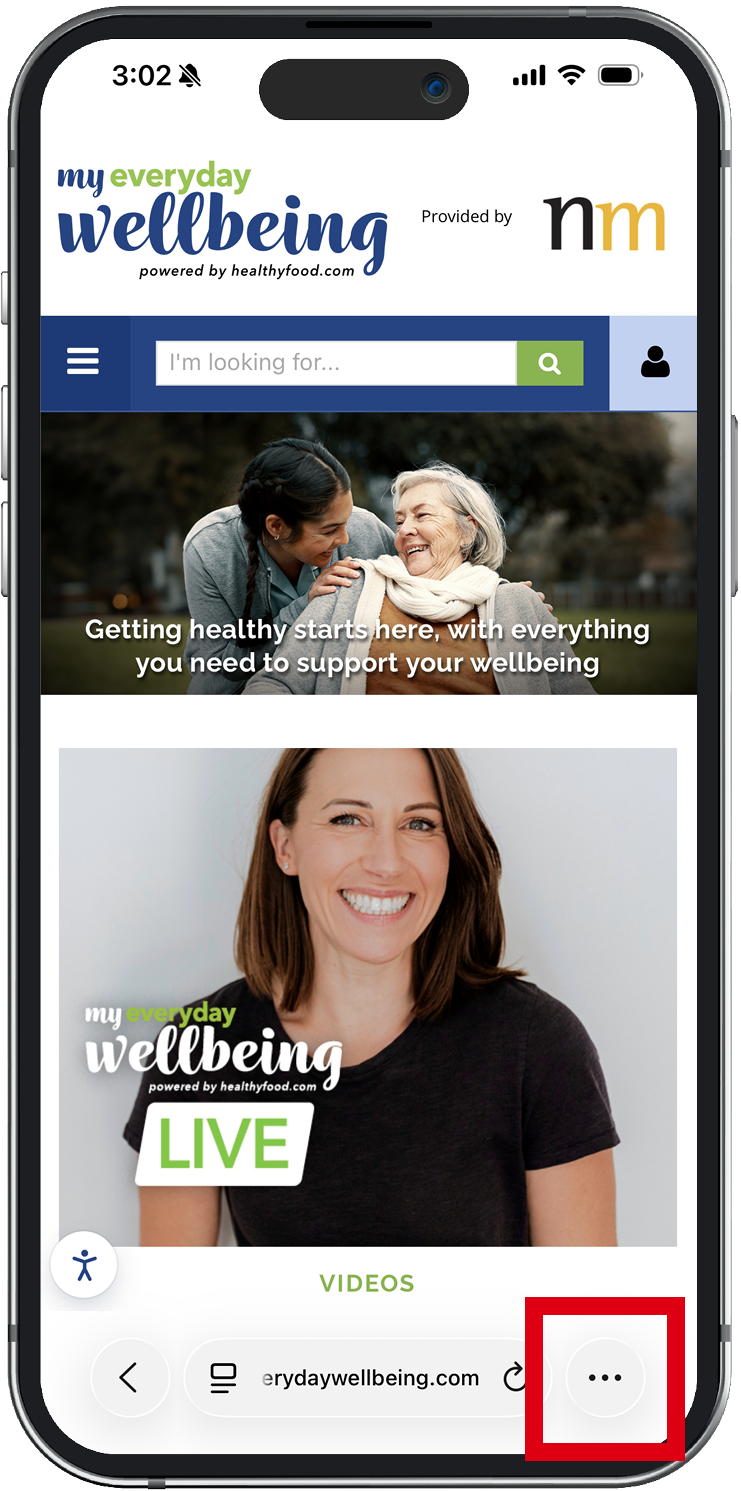
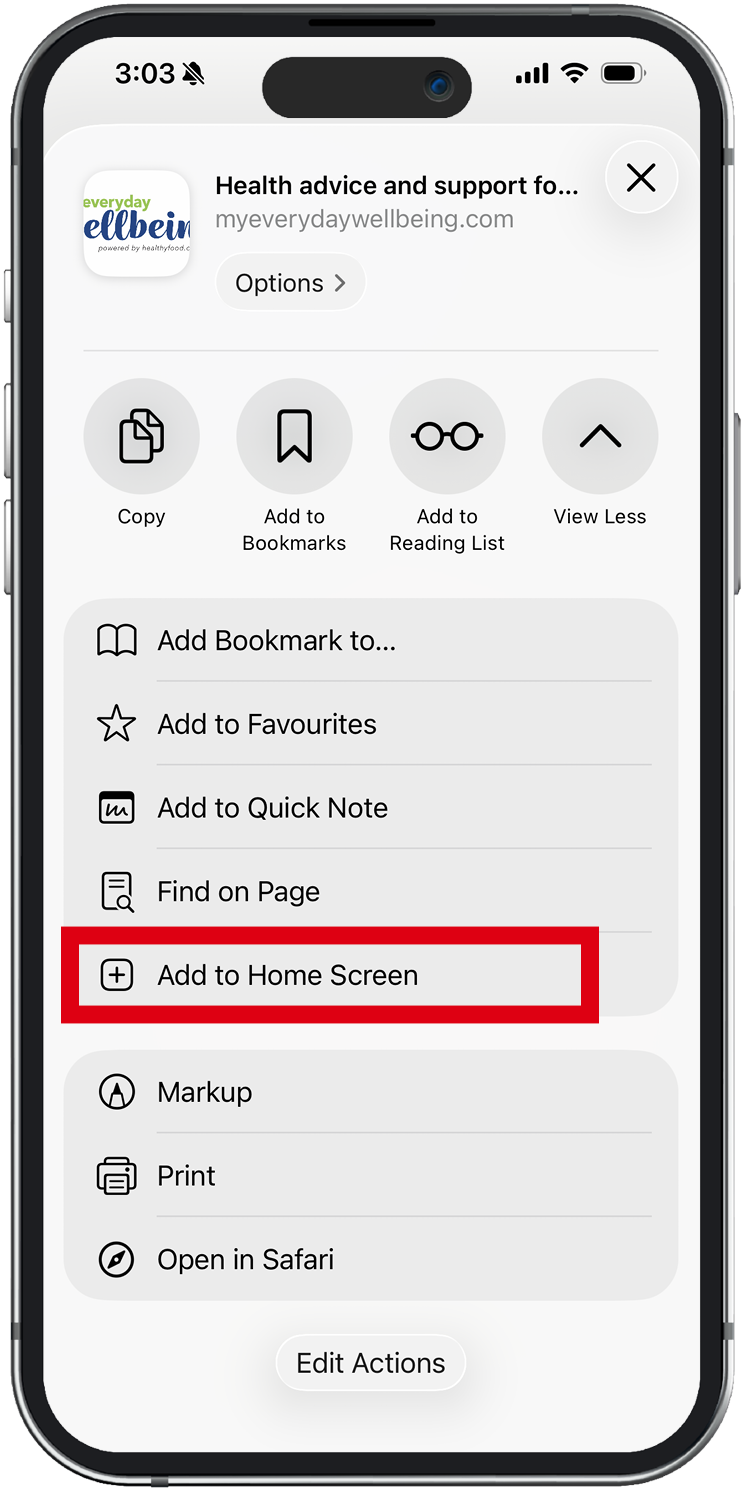
Tap Share, then scroll down and select Add to Home Screen.
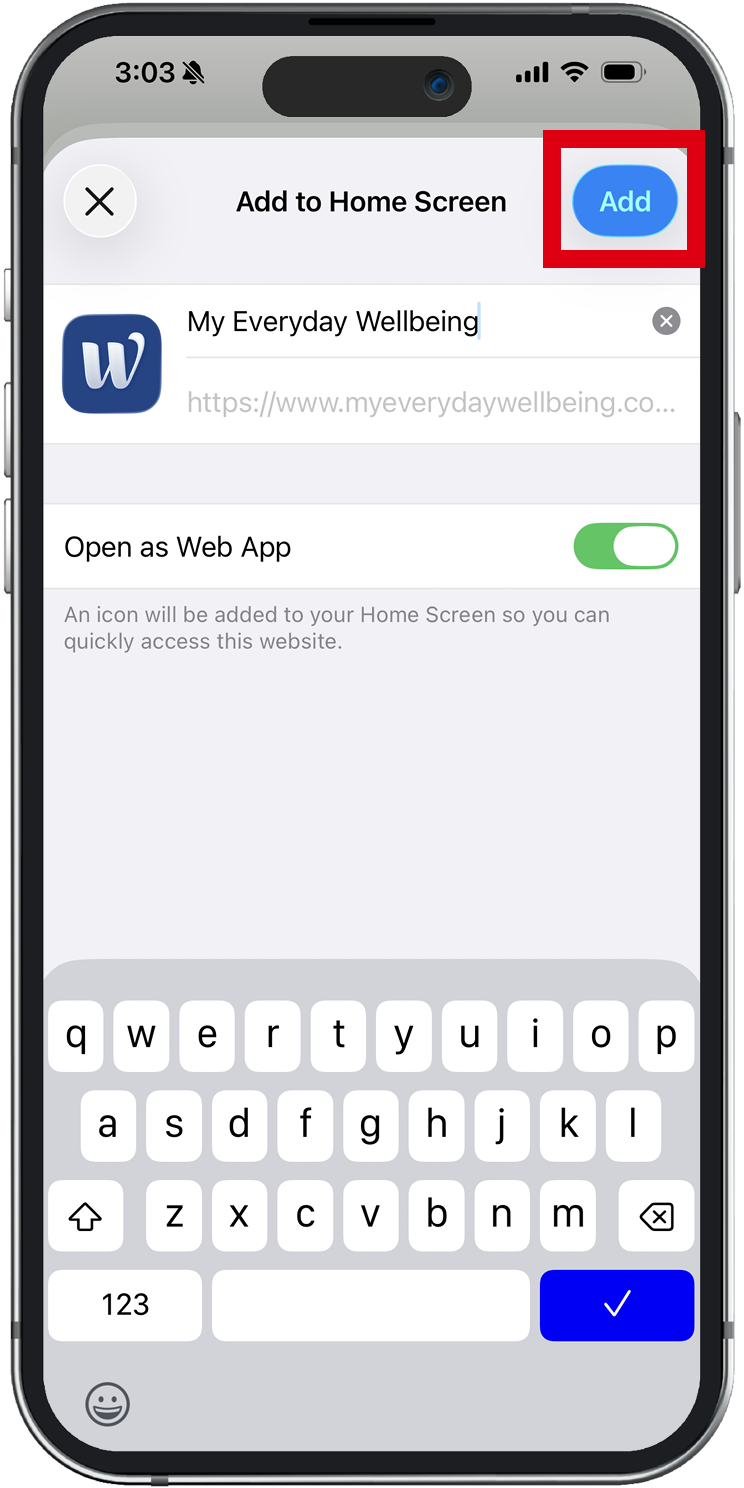
Make sure Open as Web App is switched on, then tap Add.
Tip
If you’re using an older version of Safari on an Apple device, tap the Share  icon at the bottom of the screen and select Add to Home Screen.